Troubleshoot Your GFiber Internet and Wi-Fi
Follow the steps in this article to find solutions for common internet and Wi-Fi problems.
What to Check First
Check for service outages
Open the GFiber App or sign in at fiber.google.com. Look for an outage banner on your homepage.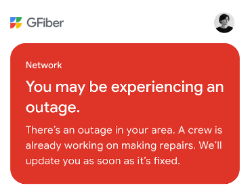
- If there’s an outage in your area, we’re already on it — no troubleshooting is needed.
- Need help checking? Learn more about how to check for service outages.
Check your account status
While you’re logged in to your account, check for any payment alerts or account messages.
- If your service is paused due to a billing issue, update your payment method and pay your balance first.
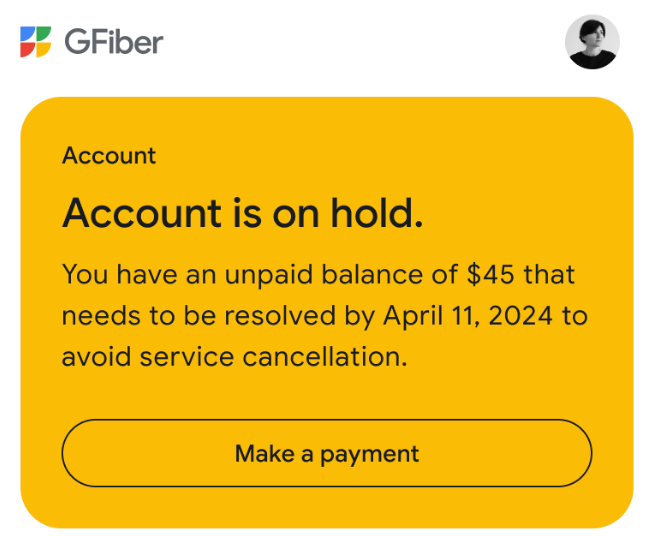
- Need to make a payment? Update your payment methods and pay your balance.
Check Your Equipment
Router
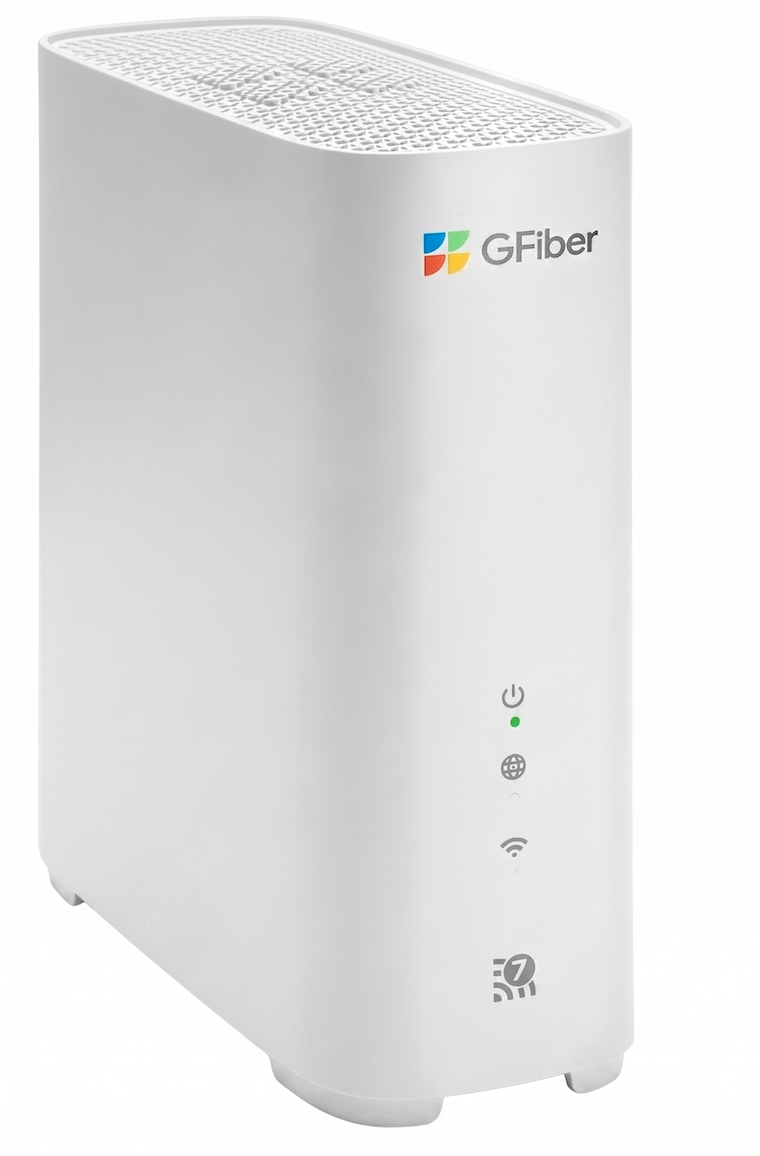 Wi-Fi 7 Router (GRBE331C) | 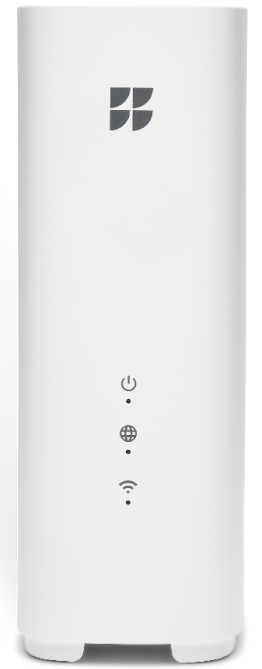 Wi-Fi 6E Router (GR6EXX0C) | 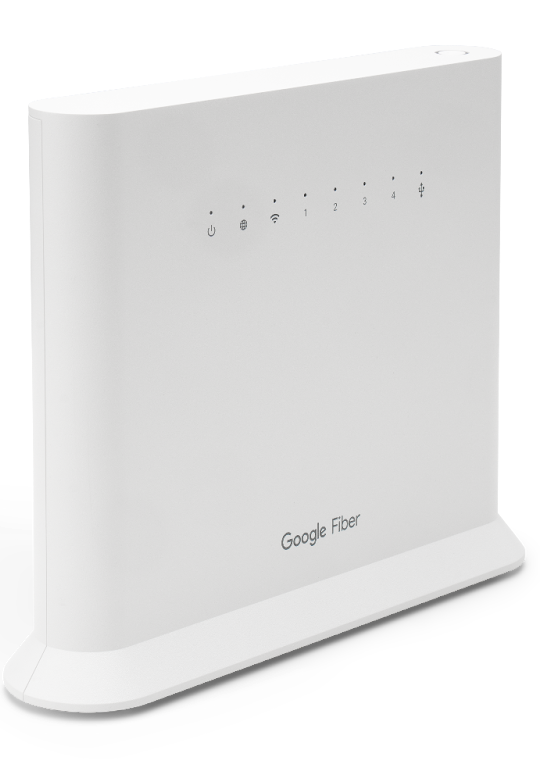 Wi-Fi 6 Router (GRAX210T) | 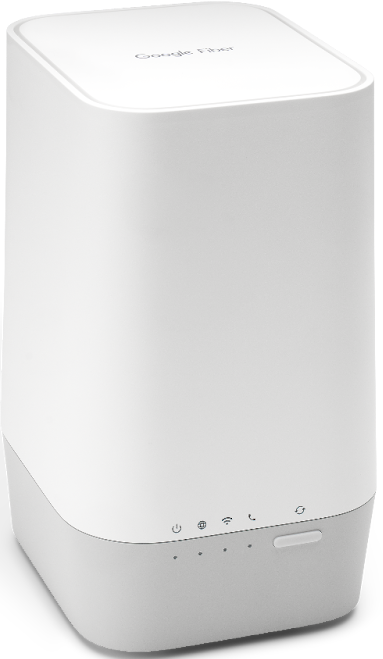 Multi-Gig Router (GFRG300) |
Your router connects your device to the internet. If it’s offline, in a bad spot, or misconfigured, it can cause connection issues.
Try these steps:
Fiber Jack
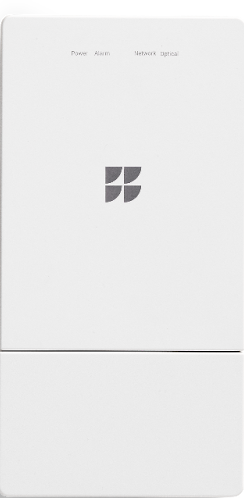 Fiber Jack (GFLT100) |
The Fiber Jack connects your home to the GFiber network. If it's not working or can’t communicate with your router, your connection may be affected.
Try these steps:
Mesh extender (if you have one)
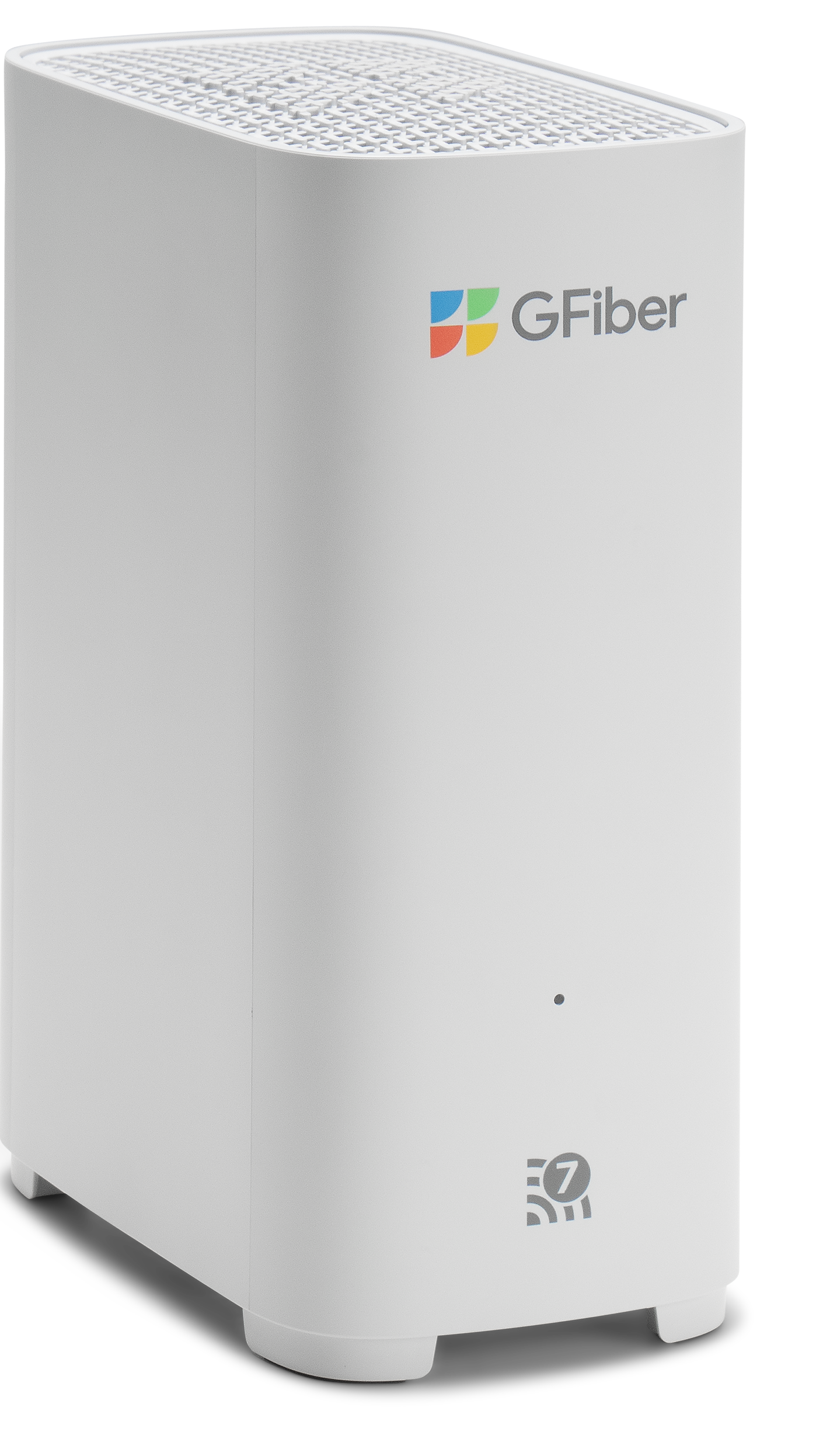 Wi-Fi 7 Mesh Extender (GEBE320C) | 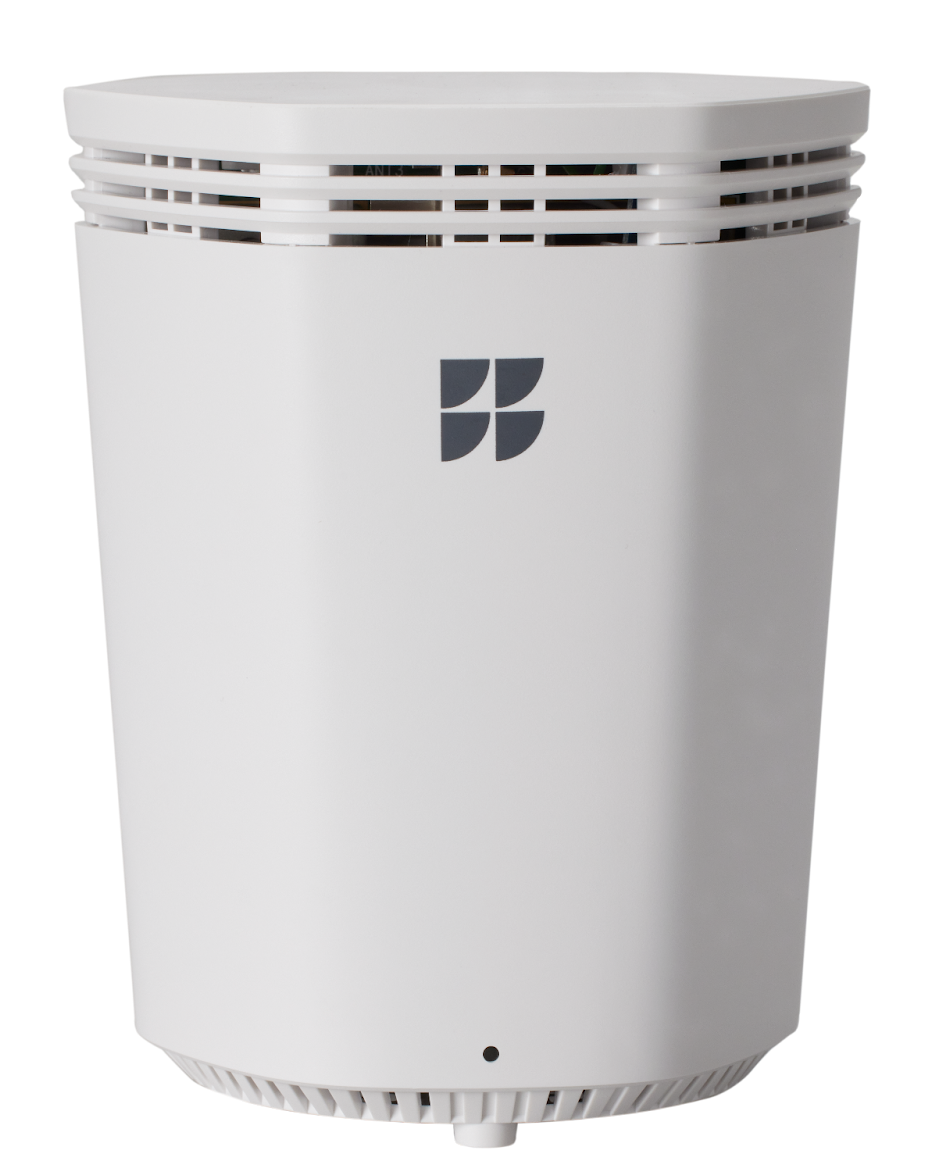 Wi-Fi 6E Mesh Extender (GE6E220C) |
A mesh extender helps expand Wi-Fi to other rooms. If your connection is strong near the router but spotty elsewhere, your extender may need attention.
Try these steps: