Manage Universal Plug and Play (UPnP) With the GFiber App
Universal Plug and Play (UPnP) Overview
Universal Plug and Play (UPnP) is a network feature that allows your connected smart devices, computers, and gaming consoles to automatically talk to your router and open the network ports they need on demand.
Instead of requiring you to manually type in complex port numbers and protocols, UPnP automates the process safely. When your device is done using the port, it automatically closes it.
When should I use UPnP?
You should turn UPnP on if you are experiencing any of the following issues:
-
Gaming Consoles: Your Xbox, PlayStation, or Nintendo Switch reports a Strict NAT or Type 3 NAT error, or you are having trouble joining multiplayer lobbies.
-
Smart Home Devices: Smart cameras, baby monitors, or voice assistants fail to connect to their remote cloud servers.
-
Peer-to-Peer Applications: Voice over IP (VoIP) software or video conferencing tools drop packets or fail to connect.
How to Enable or Disable UPnP
Before you begin, download the GFiber App from the Google Play Store or the App Store.
-
Locate your settings: Open the GFiber App and select the Network tab from the bottom menu.
-
Navigate to ports: Tap Network settings, then Advanced network settings, then Ports.
-
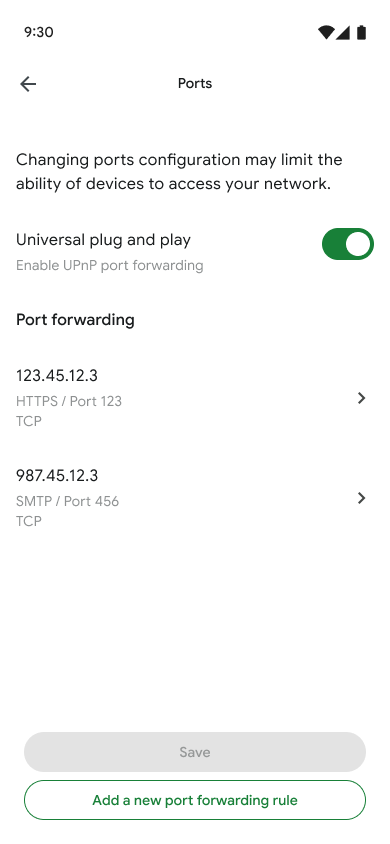
Toggle the switch: Locate the Universal plug and play setting.
-
Save your changes: Tap the switch to toggle it ON (or OFF if you wish to disable it), then tap Save.
FAQs
Yes, for the vast majority of residential users. UPnP is highly convenient because it automates complex networking tasks for everyday consumer electronics. However, because it allows devices to open ports automatically without administrator approval, security-conscious users or businesses may choose to turn it off and use manual port forwarding instead.
If you enabled UPnP and your console still reports a NAT issue, simply restart your gaming console. This forces the console to send a fresh port request to the GFiber router.